Showing posts with label SharePoint Online. Show all posts

Monday, November 11, 2013

Cross Domain AJAX Calls and SharePoint Apps on Office 365

To give a bit of background, I have been exploring architectures and various components needed to create a multi-tenant SharePoint App. So far I have settled on using SharePoint only, as a frontend layer and using external services to drive the entire backend, including storage.
Given this high level design the first interesting item that I came across was while posting data to the backend Service from a SharePoint Hosted App. The classic client side Cross-domain security issue. Here are some of the solutions out there for this issue:
  • Using the JSONP hack
    • Due to its nature, this only works for ‘GET’ requests and I wanted to do a ‘POST.
  • Using the default SharePoint 2013 Web Proxy
    • I was able to make the ‘GET’ requests work with this approach but not the ‘POST’ requests.
  • Creating a Custom Proxy
    • Worked but involved quite a few hoops and a remote web page, which I did not want to create.
  • Enabling Cross Origin Resource Sharing (CORS) in WCF Services
    • Worked perfectly !!!
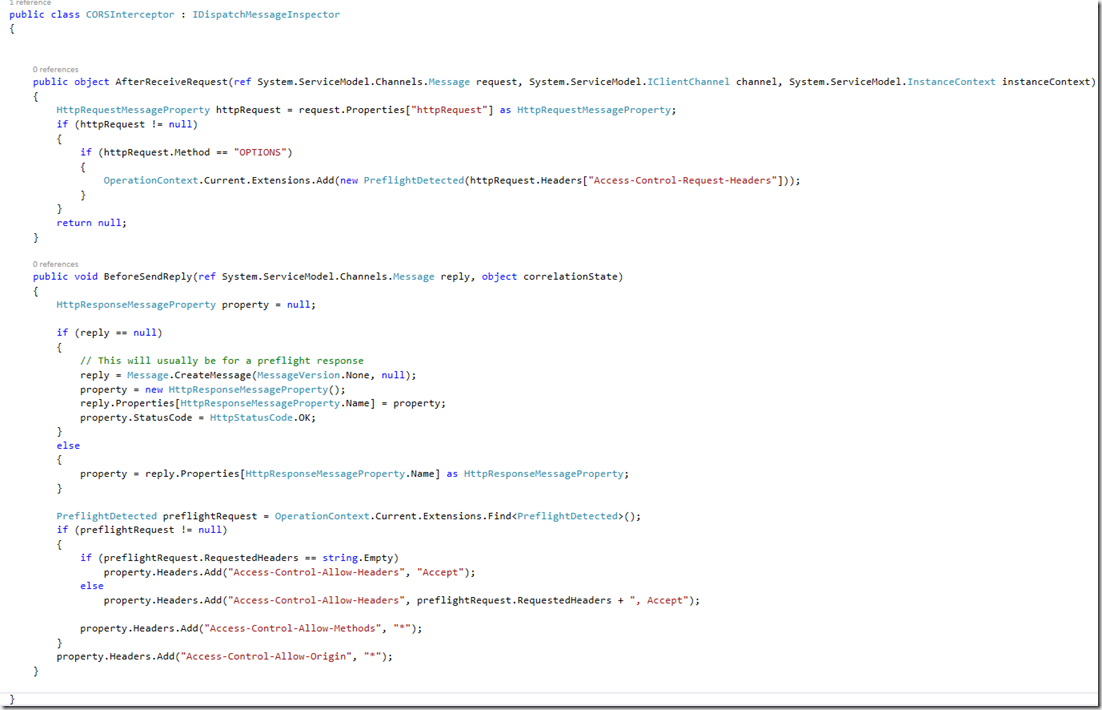
For simple requests we can enable CORS by setting some response headers like Access-Control-Allow-Origin, Access-Control-Allow-Methods and Access-Control-Allow-Headers with the value ‘*’. 
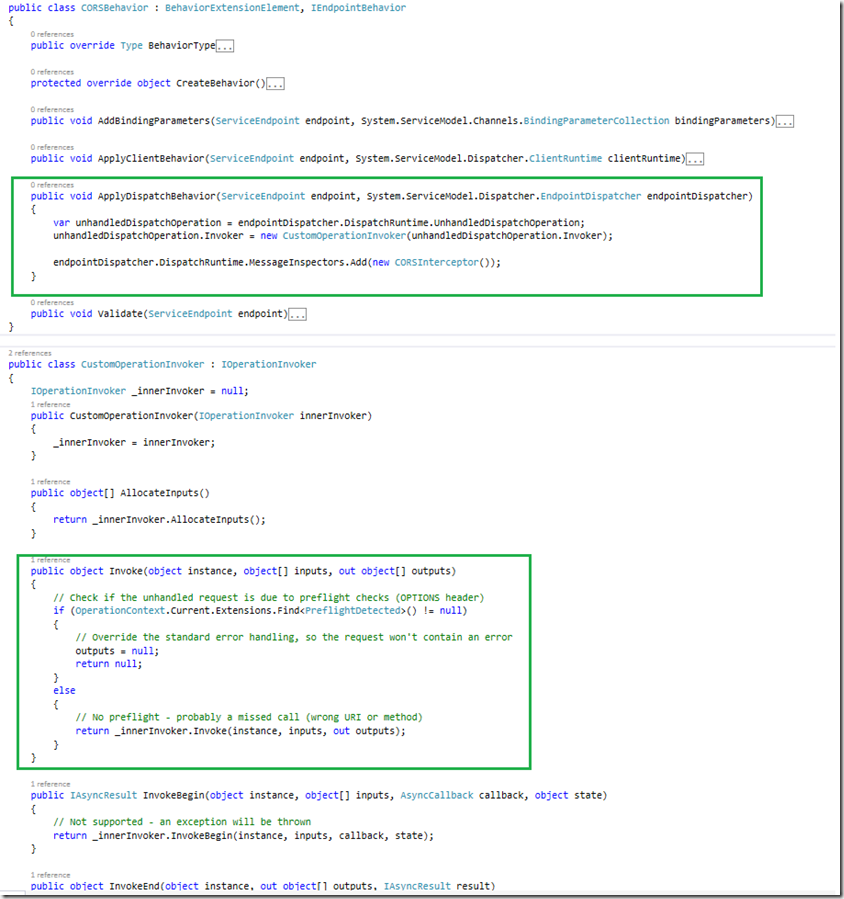
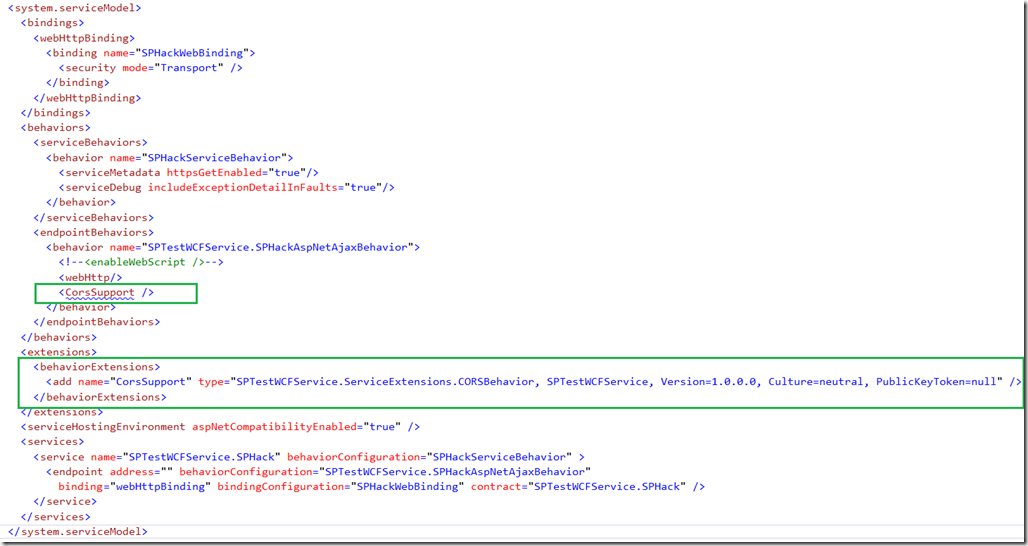
But all requests from Office 365 contain special headers and hence they are ‘Preflighted’, which means they would first send an http request with “OPTIONS” method to check the domain and then send the actual request. (More details on Preflighted requests here) For Preflighted requests we need to write some extra code along with adding the response headers. Here is a good article with sample code that explains this and below is the snap shot of the code:
image
image
image
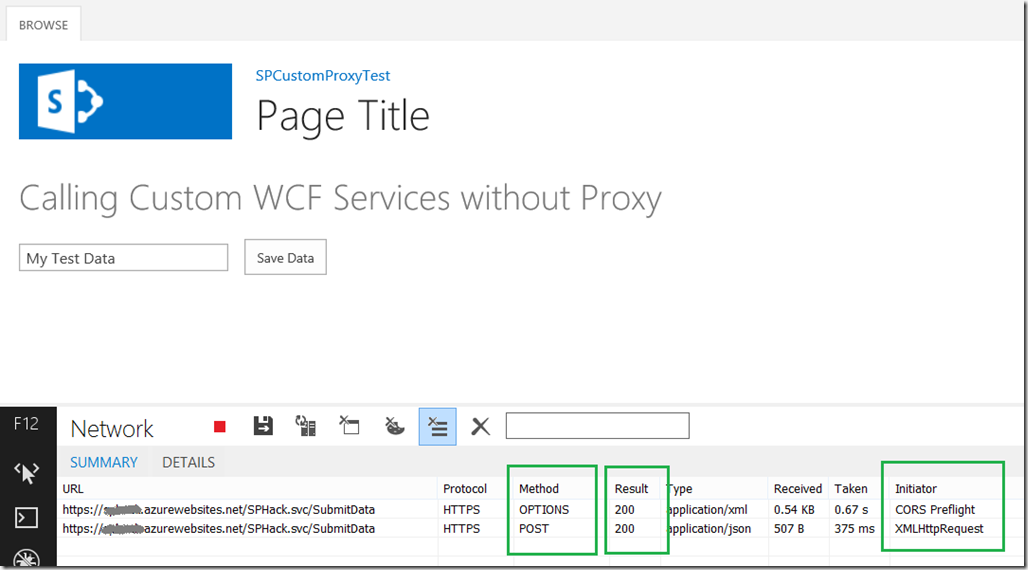
And here is the snap shot of the sample app working on Office 365:
image

Additional Resources on CORS and Multitenant Applications with Azure:

Friday, March 08, 2013

Authentication and Authorization with remote apps in Office 365 and SharePoint Online (Part 1)

This post is detailing about how you perform authentication and authorization from a remote app in SharePoint Online.
Especially, when the remote apps are running on a Non .Net technology platforms. Which means we can’t use the OOTB ‘TokenHelper’ class.
The entire flow needs to only use simple HttpRequests.
I am going to break this into 3 parts:
  1. Register a Remote App in SharePoint
  2. Get the 'AccessToken’ via the Azure ACS and SharePoint dance
  3. Call SharePoint REST Service with the AccessToken
Right now I am using the .Net HttpRequest class to perform this entire example and understand the entire flow. I am going to convert this into a JavaScript library soon so that it can be easily consumed by any external platforms. Ok, so lets get started.

Register a Remote App in SharePoint

There is some good guidance around registering an app for SharePoint but in our case we just want to register an app to perform the OAuth from a remote application so the only good option is to register it via ‘/_layouts/15/appregnew.aspx’.

image
There are 3 pieces of information that we need from the app registration:
  • client_id          = App Id
  • client_secret   = App Secret
  • redirect_uri     = Redirect URI

Get the 'AccessToken’ via the Azure ACS and SharePoint dance

There are 3 steps to this dance:
Step 1: Get the Request token
Getting the request token just requires a well formed Url with all the 3 pieces of information that we collected during the app registration.

image
(See this app permissions section for all the Scope and Rights available in SharePoint Online.)
This Url would redirect to the msonline login screen and after you enter the credentials if you prompt you with the trust screen:

image

image

Once you trust the app, it would redirect back to the ‘redirect_uri’ configured during the app registration along with the request token in the querystring

image

Step 2: Get the Realm

image
(This method is taken directly from TokenHelper class. The targetApplicationUri is the SharePoint Online url)
Step 3: And finally, Get the Access Token
Now that we have the requestToken and realm, we need to create a POST request to ACS to get back the access token

image

Call SharePoint REST Service with the AccessToken

The only thing to remember before calling the SharePoint REST API’s is to make sure that we requested the correct Scope and Rights while generating the access token. In the code above I request ‘AllProfile.Manage’ as my scope so I can call the User Profile REST API’s.
image
That’s it. Once we have the access token we can call all the SharePoint REST API’s that fetches the data. For creating, updating and deleting we need to get 1 more piece of data which is RequestDigest. I will cover this in my next post on uploading documents to SkyDrive Pro using REST API.

Reference Links: 

Tips and FAQs: OAuth and remote apps for SharePoint 2013
OAuth authentication and authorization flow for apps that ask for access permissions on the fly in SharePoint 2013 (advanced topic)
Get started with the SharePoint 2013 REST service
Using the SharePoint 2013 REST service


Download the Code from https://github.com/jomit/OAuthO365


Friday, December 28, 2012

Authentication with Office 365 from an On-Premise Application

Recently I had a problem wherein I needed to connect to an Office 365 SharePoint site from an on Premise Windows App.
Now at first it seemed simple but as I drilled deeper I came across some challenges and while overcoming them I learned a lot more about how O365 Authentication works.

Before I go further I would like to point out 2 resources which helped me a lot in solving this challenge:
Here is that diagram which explains the AuthN basics for SharePoint Online in Office 365:
Passive claims AuthN 
(So the key here is to understand that SharePoint Online uses the binary token returned from the STS service located at login.microsoftonline.com to validate all requests.)

At first I tried using the “MsOnlineClaimsHelper” but I couldn’t get it to work as it kept on throwing errors while fetching the response using ‘WSTrustFeb2005ContractClient’. Then I looked at the WinRT code and it was doing the exact same thing but with much less dependencies. Just plain HttPWebRequests + XML.

But the WinRT code was specifically for REST API’s and not Client Object Model. So I modified the code a little bit to make it work with CSOM.

Here is the link to Helper class code that I created and used for one of the code samples on MSDN.


AddIn